Roles & Team Management
Overview
Effective team management starts with assigning the right roles and permissions to your team members. Our platform allows administrators to create and manage roles, assign them to team members, and ensure seamless collaboration within your organization.
Role Creation
What Are Roles?
Roles define the level of access and permissions granted to team members on the platform. They determine what actions a user can perform and which parts of the platform they can access.
How To Create a Role
-
Access the Roles Section
Navigate to the "Settings" section on the sidebar, then click on the "Role" tab. -
Create a New Role
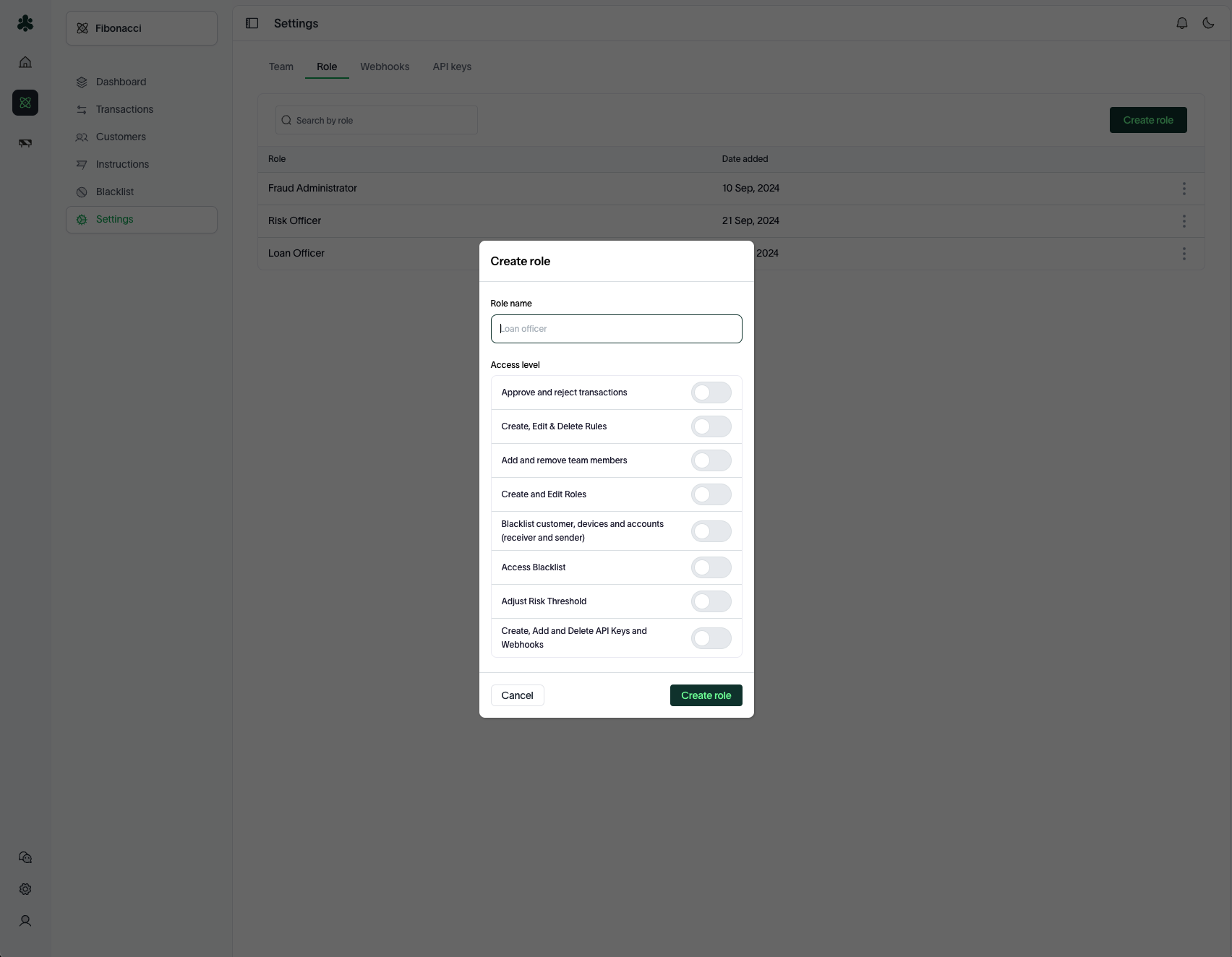
Click on the "Create role" button. Provide the following information:- Role Name: Give the role a descriptive name (e.g., Analyst, Manager, Viewer).
- Permissions: Select the actions this role will be allowed to perform.
-
Save the Role
Review the permissions and create the role. The new role will now be available for assignment.
Managing Roles
-
Editing Roles
- Navigate to the "Roles" tab.
- Select the role you want to edit.
- Adjust the permissions as needed and save the changes.
-
Deleting Roles
- Navigate to the "Roles" tab.
- Select the role you want to delete.
- Confirm the deletion.
cautionRoles currently assigned to team members cannot be deleted unless reassigned.
Adding Team Members
How To Add a Team Member
-
Navigate to the Team Members Section
Go to the "Team" tab in your account settings. -
Add a New Member
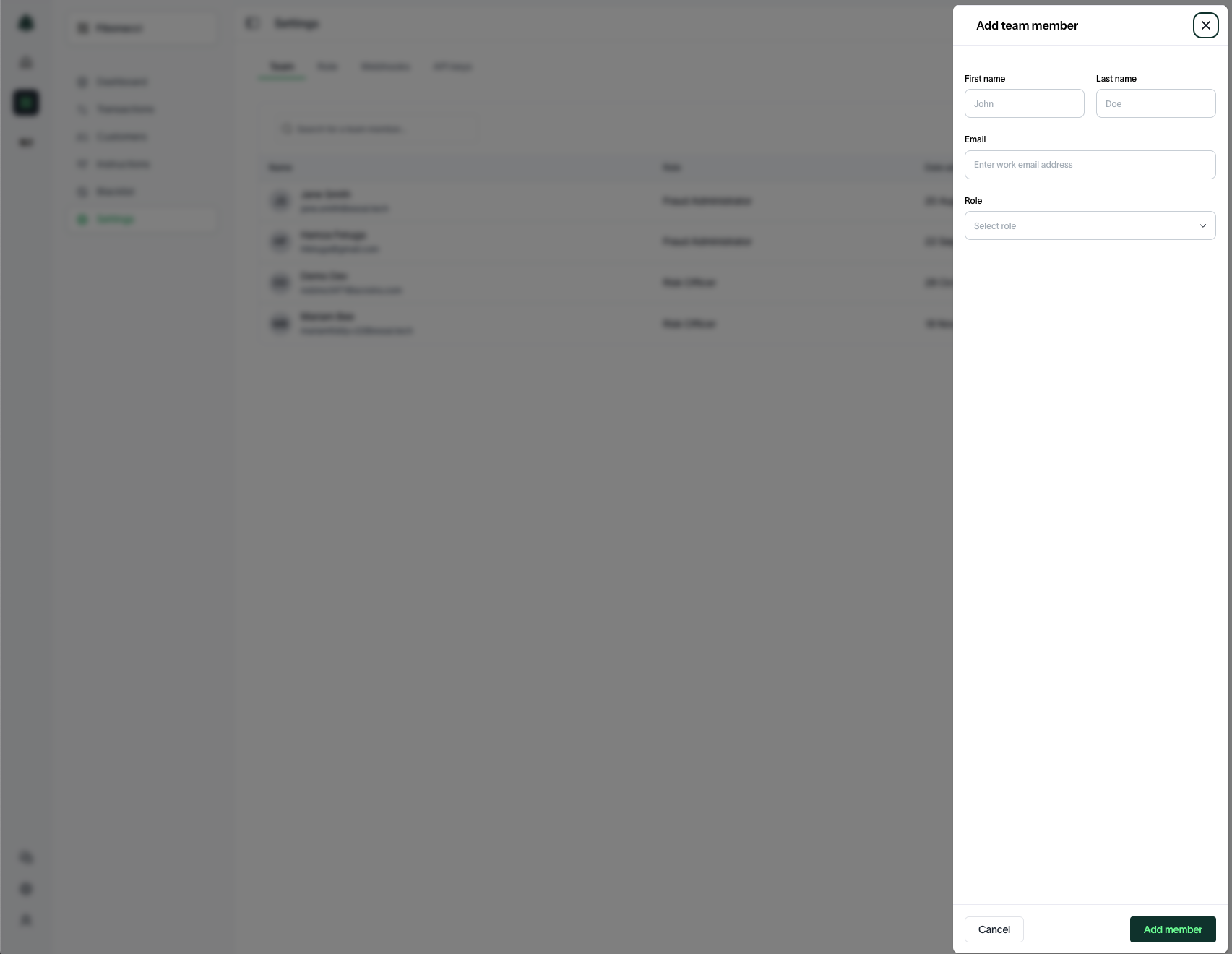
Click on the "New Team Member" button and provide the following details:- First Name and Last Name: The name of the team member.
- Email Address: The team member's contact email.
- Role: Assign one of the available roles to the team member.
Managing Team Members
-
Editing Team Members
- Navigate to the "Team" tab in your account settings.
- Select the team member whose details you wish to edit.
- Modify their assigned role or other information as needed as save your changes.
-
Deleting Team Members
- Navigate to the "Team" tab in your account settings.
- Select the team member you want to remove.
- Confirm the deletion.
Administrator Permissions
The administrator account is pivotal in managing roles and team members. Administrators have the following capabilities:
- Full access to all actions within the company account.
- The ability to create, edit, and delete roles.
- The ability to add, edit, and remove team members.
By efficiently managing roles and team members, administrators ensure the security and productivity of their team on the platform.