Rules
Overview
Rules are instructions for defining specific conditions to monitor and detect anomalies or irregularities in your transactions. They allow you to customize the behavior of the system to align with your organization's unique risk management policies and goals.
By creating rules tailored to your needs, you can proactively flag transactions or customer activities that deviate from expected patterns, ensuring a secure and trustworthy financial environment.
How To Create A Rule?
Our system simplifies the process of creating rules through an intuitive interface that supports natural language inputs. Here's how it works:
-
Access the Rule Creation Interface:
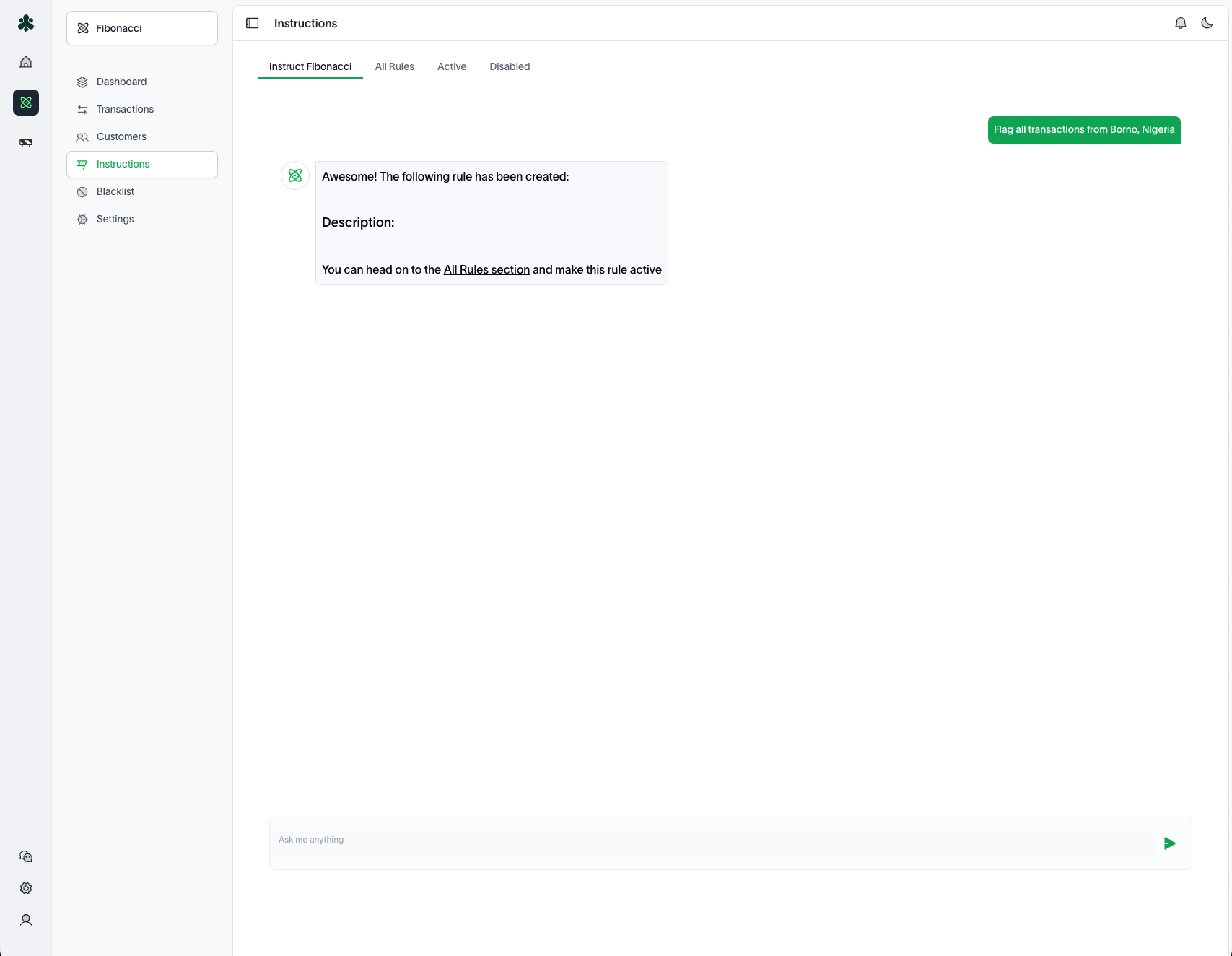
Navigate to the "Instructions" section on the side menu and select the "Instruct Fibonacci" tab. The interface is designed to understand and process natural language statements.
-
Define Your Rule Using Natural Language:
Instead of writing complex code or logic, you can describe the rule in plain English. For example:- "Flag all transactions above $10,000 from international accounts."
- "Alert when a customer performs more than 5 transactions within 10 minutes."
- "Block transactions from countries on the restricted list."
The interface parses your input and translates it into structured logic.
-
Activate Your Rule:
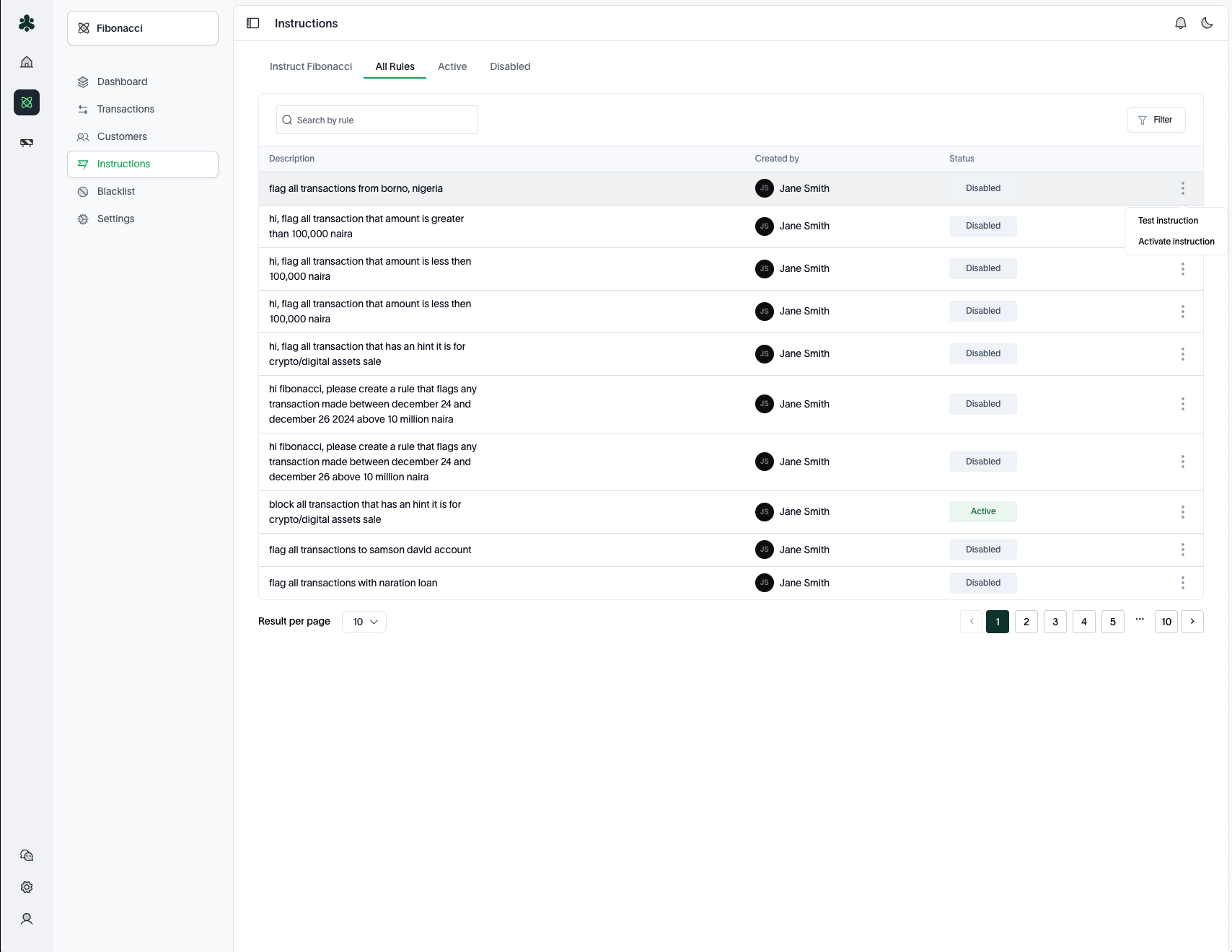
Upon creation of a new rule, it is disabled by default. To activate your rule, click on the 'All Rules' tab. On this tab, you can view all the rules that have been created in the past, including your new rule. Click on the three dots on the far right of the rule and select 'Activate instruction' from the dropdown menu.tipYou can also choose to test the effectiveness of this rule before activating it by selecting 'Test instruction' from the dropdown menu.
-
Instruction Analytics:
You can view the effectiveness of a rule, as well as other analytics, by clicking on the rule in the 'All Rules', 'Active', or 'Disabled' tab.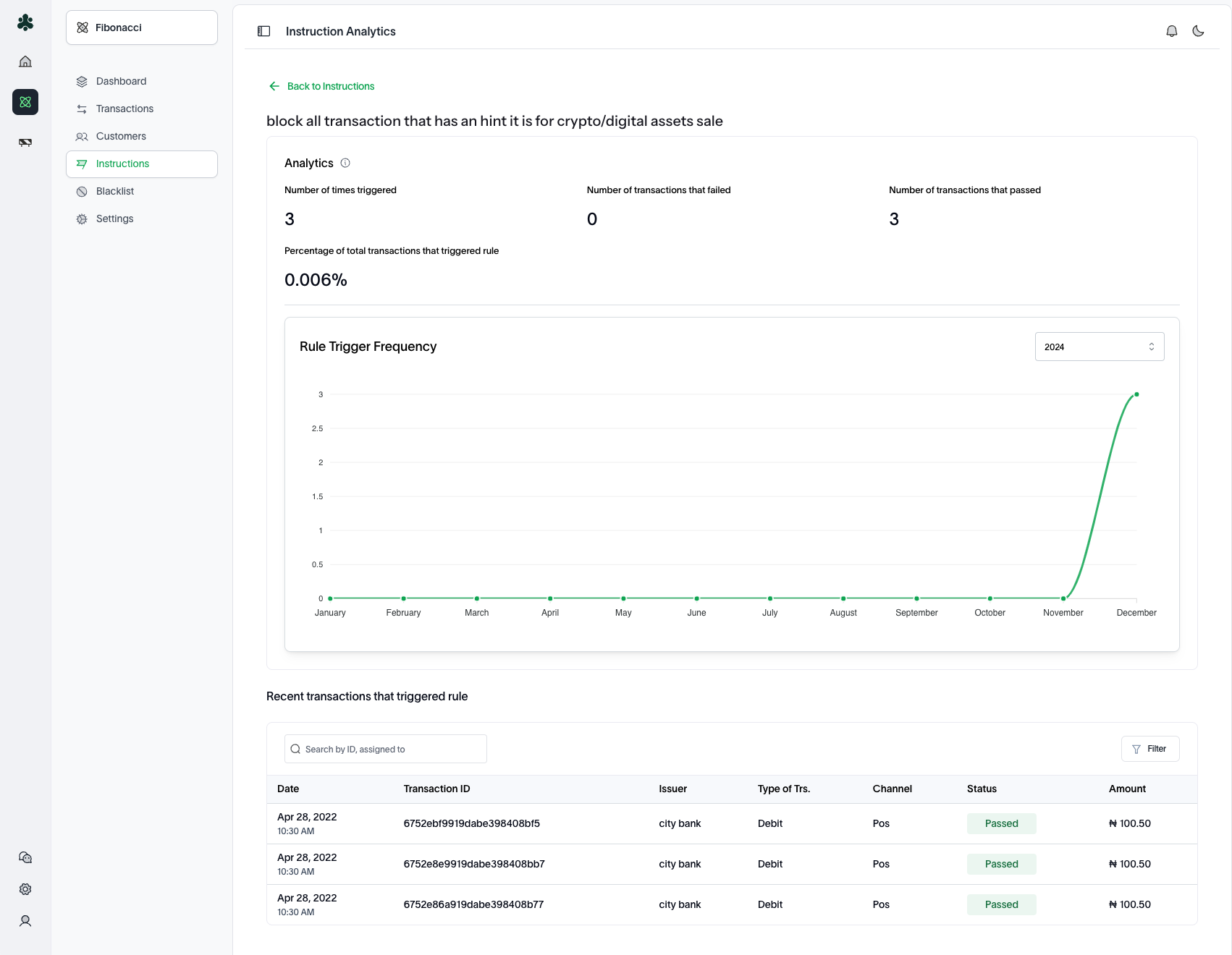
Benefits of Natural Language Rule Creation:
- Ease of Use: No technical expertise or programming knowledge required.
- Faster Configuration: Quickly implement policies without delays.
Managing Existing Rules
To review or disable existing rules, navigate to the 'All Rules' or 'Active' tab and select the rule you want to modify. There is a search bar as well as a filter button to aid the ease of finding a specific rule. From there, click on the three dots on the far right of the rule and select 'Disable instruction' from the dropdown menu to disable the rule.
Rules Management API
This will be available soon.